

Key Takeaways
- You can insert speaker notes in PowerPoint by opening the Notes pane below a slide and writing short reminders for what you plan to say. A few lines are enough to guide your speech.
- When you turn on Presenter View, your notes appear on your presenter screen while the audience sees only the slides. So, you get the advantage of having your cues close by without showing them on screen.
- You can update the notes between practice runs or remove them entirely before sharing your file. PowerPoint saves each change automatically, so nothing gets lost.
- Speaker notes help you focus on what matters. They make slides look cleaner, keep your ideas organized, and let you stay present with the audience instead of staring at your screen.
When you want to add speaker notes to PowerPoint, you should open your presentation, click the ‘Notes’ section below the slide, and type what you want to remember during your talk. That’s all it takes. Those few lines can completely change how confident you feel while presenting. They hold reminders, keywords, or transitions that keep your speech natural and your timing steady.
Many students use this feature to stay focused during class presentations. It helps them speak freely without cramming too much text on the slides. If preparing those slides feels overwhelming, EssayPro can help. You handle the delivery while our professionals can take over the structure behind it.

Don’t Risk AI Detection
Reliable, confidential, human-crafted papers — EssayPro has your back 24/7.

What Are Speaker Notes In PowerPoint
Speaker notes are private prompts placed beneath each slide in PowerPoint. They exist to help you remember what to say without adding extra text to the presentation itself. In Presenter View, they appear only on your screen to give you direction while the audience focuses on the visuals.
Some people fill speaker notes with keywords or transitions so they have an idea what comes next in their presentation. Others prefer small reminders about tone, for example. Regardless of what you choose to write, speaker notes keep you from losing your train of thought.
When you feel like you have too many essays and presentations on your hands, getting extra help can make things much easier. A PowerPoint presentation writing service can help you put together a clear and well-structured presentation without adding more work to your schedule. EssayPro’s experts can bring your presentation together in a way that feels effortless.
How To Add Speaker Notes In PowerPoint
Adding speaker notes to PowerPoint happens on the Notes pane beneath each slide. Below, you'll find how exactly to add notes to Windows and Mac PowerPoint presentations, along with the steps to do it on the online tool as well.
Windows & MacOS
On Windows and MacOS, the notes section stays hidden unless you manually turn it on. Once it's visible, you can write down PowerPoint speaker notes beneath each slide. These notes then appear only to you in Presenter View, so your slide show stays organized while the audience only sees the main content.
To add speaker notes in PowerPoint on Windows or MacOs:
- Open your presentation.
Launch PowerPoint and open the file you want to edit. You’ll see the main editing window with the slide thumbnails on the left and your current slide in the center. - Show the Notes pane.
- Windows Notes pane: Look at the bottom of the PowerPoint window and click Notes. You’ll see a small area appear under the slide where you can type.
- MacOS Notes pane: Go to the View tab in the top menu and select Notes to reveal the notes area beneath your slide.
- Add your notes.
Click inside the Notes box and start typing your talking points. You can format text using the toolbar above the workspace. - Turn on Presenter View.
- On Windows: Click the Slide Show tab at the top ribbon, then check Use Presenter View in the Monitors group.
- On MacOS: Open the Slide Show menu at the top bar, then select Presenter View.
- Save your changes.
PowerPoint saves notes automatically, but you can also press Ctrl + S (Windows) or Command + S (MacOS) to make sure every note stays linked to its slide.
Online
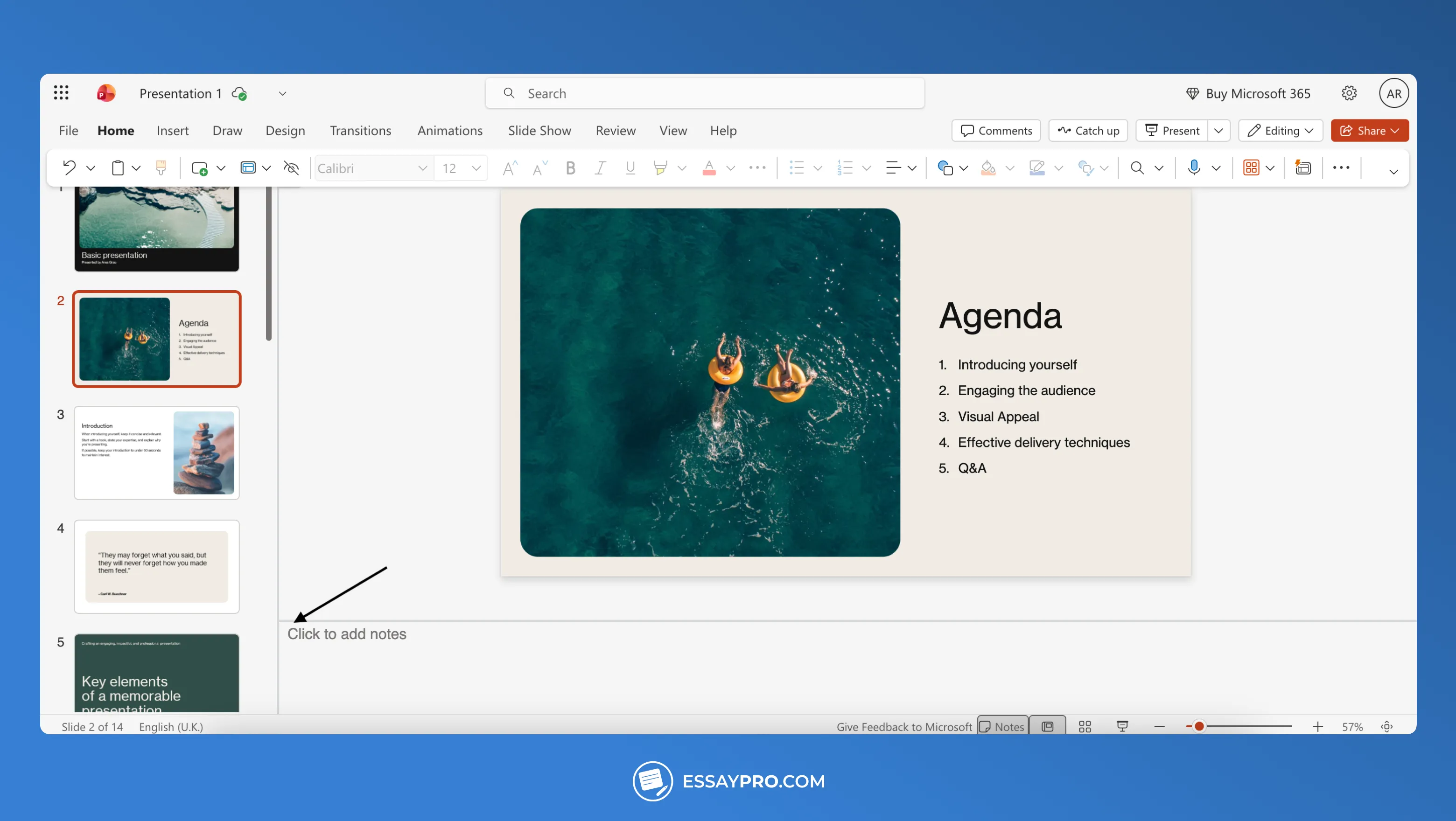
If you're editing online, click "Click to add notes" under your slide and start typing. The Speaker Notes button in the top toolbar also opens a panel for writing.
To add speaker notes in PowerPoint online:
Step 1. Open your file.
Go to office.com, sign in, and open your presentation in PowerPoint Online.
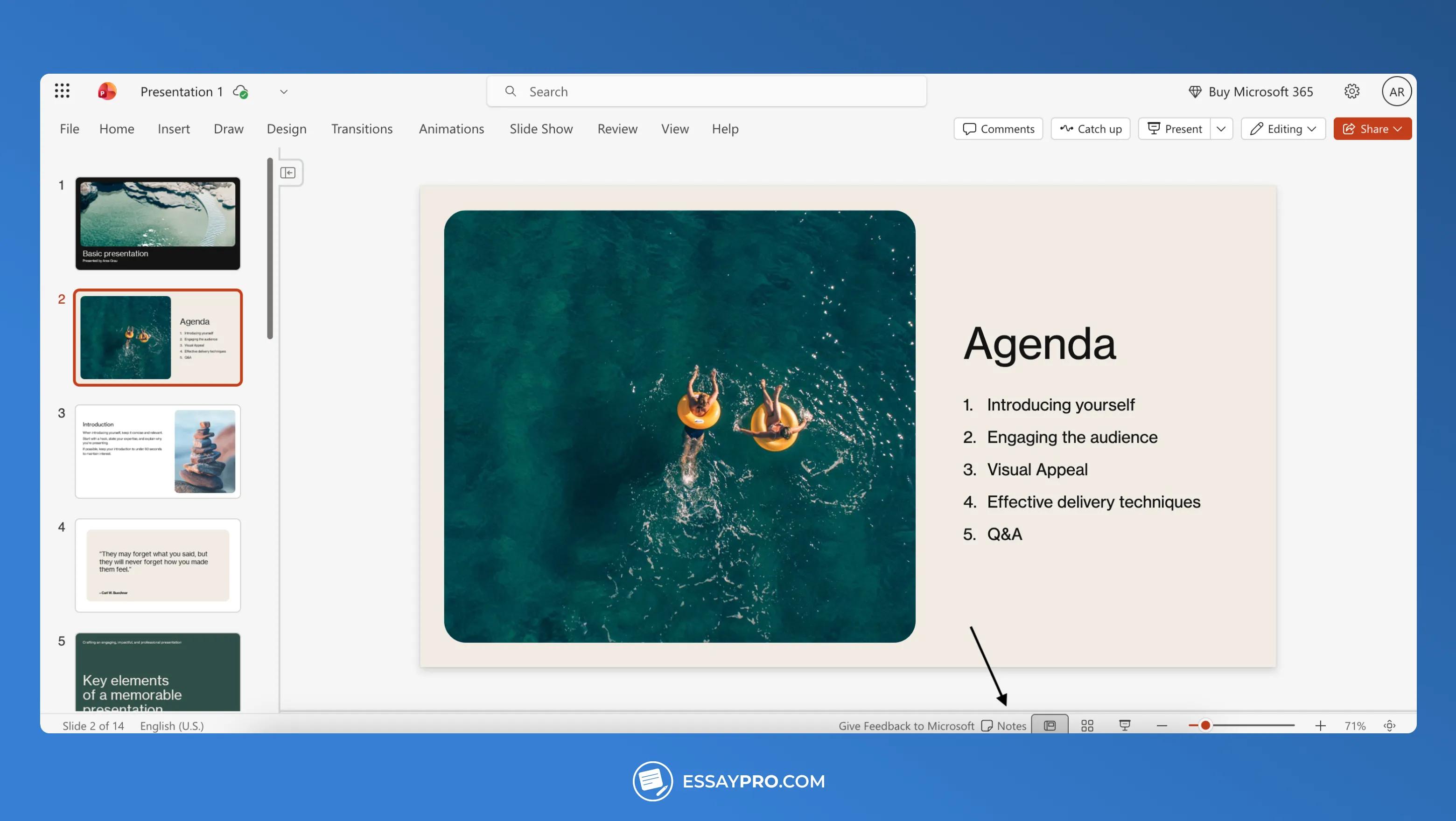
Step 2. Show the Notes pane.
At the bottom of the PowerPoint window, click Notes. The box expands beneath the slide, allowing you to type directly into it.
Step 3. Type your notes.
Write short bullet points, data reminders, or prompts you’ll reference while speaking. PowerPoint Online saves every keystroke automatically.
Step 4. Present with notes.
Select the Slide Show tab, click Start Slide Show, and use the built-in notes panel that appears beside your slide.
How to View Speaker Notes in PowerPoint?
Open the Slide Show tab and check Use Presenter View, then start your slideshow. The screen will show the current slide and the notes you've written for it. You'll also see a small preview of the following slides. The audience will only see the active slide, and the note will be displayed in a private window.
To view speaker notes in PowerPoint:
Step 1. Open your PowerPoint file and go to the Slide Show tab.

Step 2. Check the box labeled Use Presenter View.
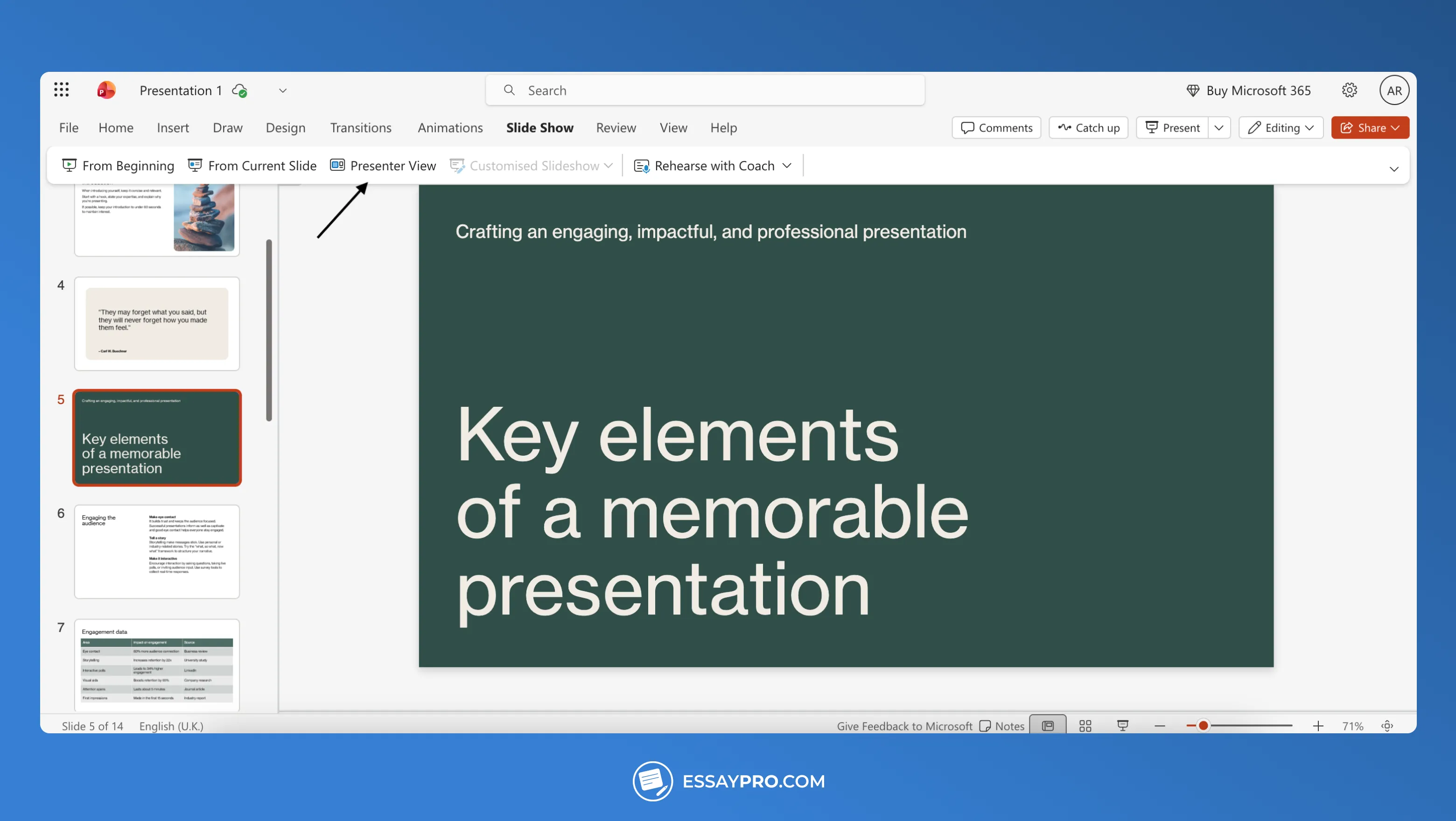
Step 3. Click From Beginning or From Current Slide to start the presentation.

Step 4. Ensure the box for Use Presenter View is checked in the Monitors section.

Step 5. Your view now shows your slide, your notes, and a next-slide preview, while the audience sees only the main display.

How to Edit Speaker Notes in PowerPoint?
If you want to update your notes, select the slide that needs changes and click the box below that says 'Click to add notes'. Tap the Notes button on the status bar if the area isn't visible. From there, you can revise text as needed. Editing PowerPoint presentation with speaker notes this way keeps you ready for your next rehearsal.
To edit speaker notes in PowerPoint:
Step 1. Open your presentation and select the slide you want to edit.
Step 2. Look under the slide for the notes area.
Step 3. If you can’t see it, click Notes at the bottom of the window.
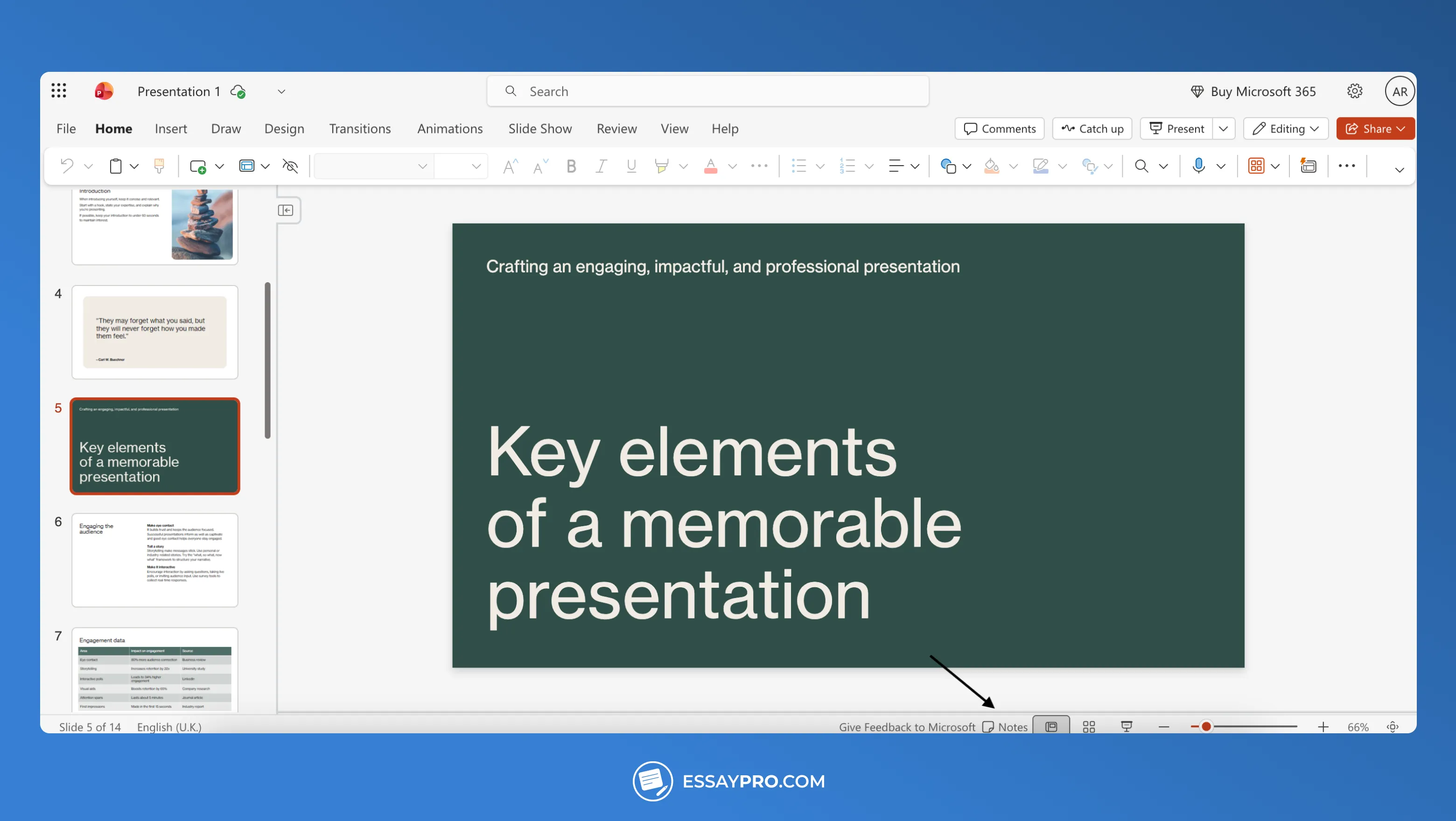
Step 4. Click inside the pane and start typing or updating your notes.
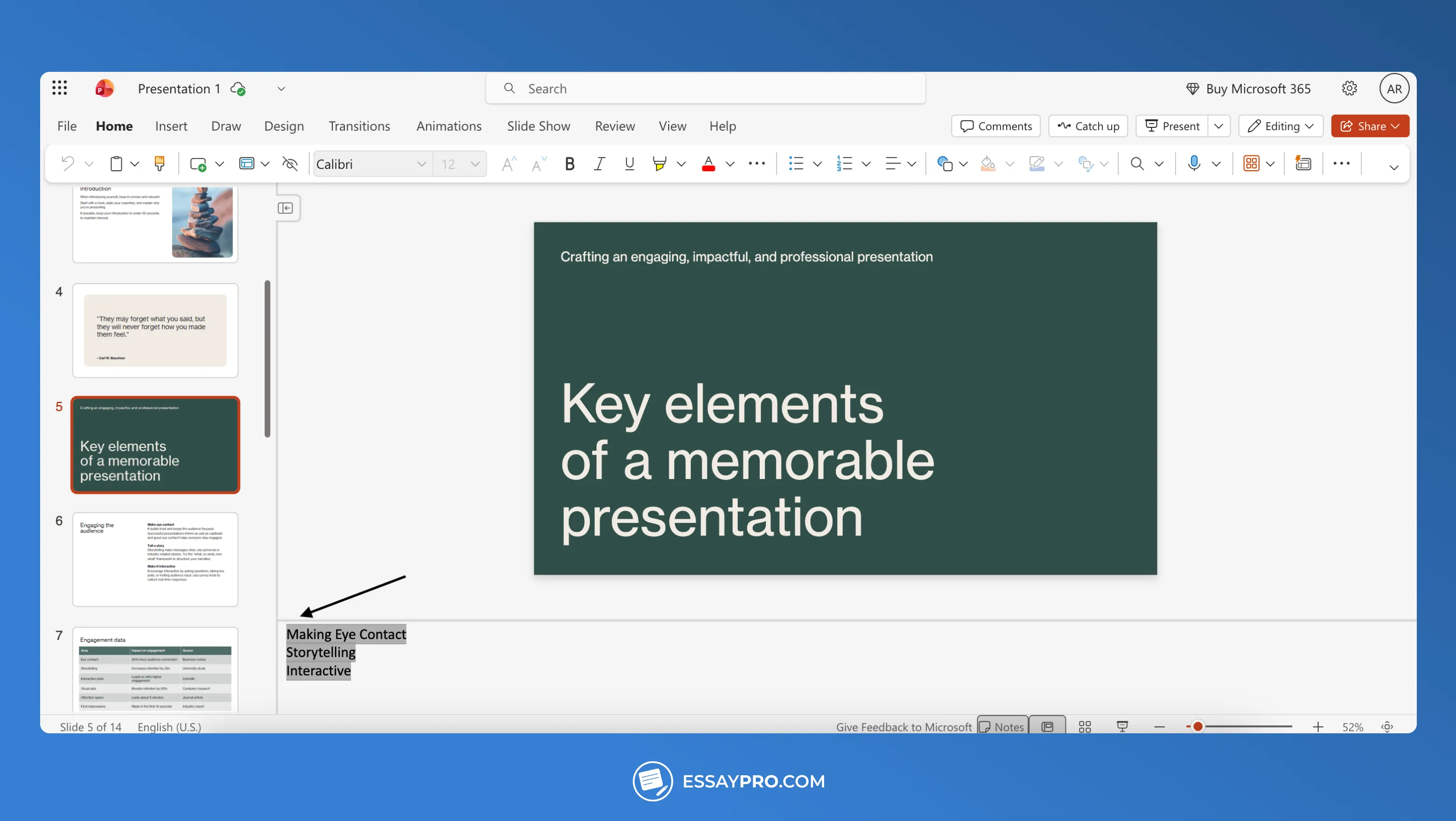
Step 5. Adjust the formatting for easier reading and save your file.
Consider using professional speech writing services if your presentation text needs more work.
How to Hide Speaker Notes in PowerPoint?
There are two ways to hide your notes if you don't want them to show up. The first one is to use Presenter View, which lets you see your notes while the audience sees only your slides. The second way is to remove the notes completely before sharing the file.
To keep notes private while presenting online:
Step 1. Open your presentation in PowerPoint Online.
Step 2. At the bottom of the window, click Notes to open or close the notes pane.
Step 3. When you present using Slideshow → Start Slideshow, the audience only sees the slides. Your notes remain visible only in your editing window.
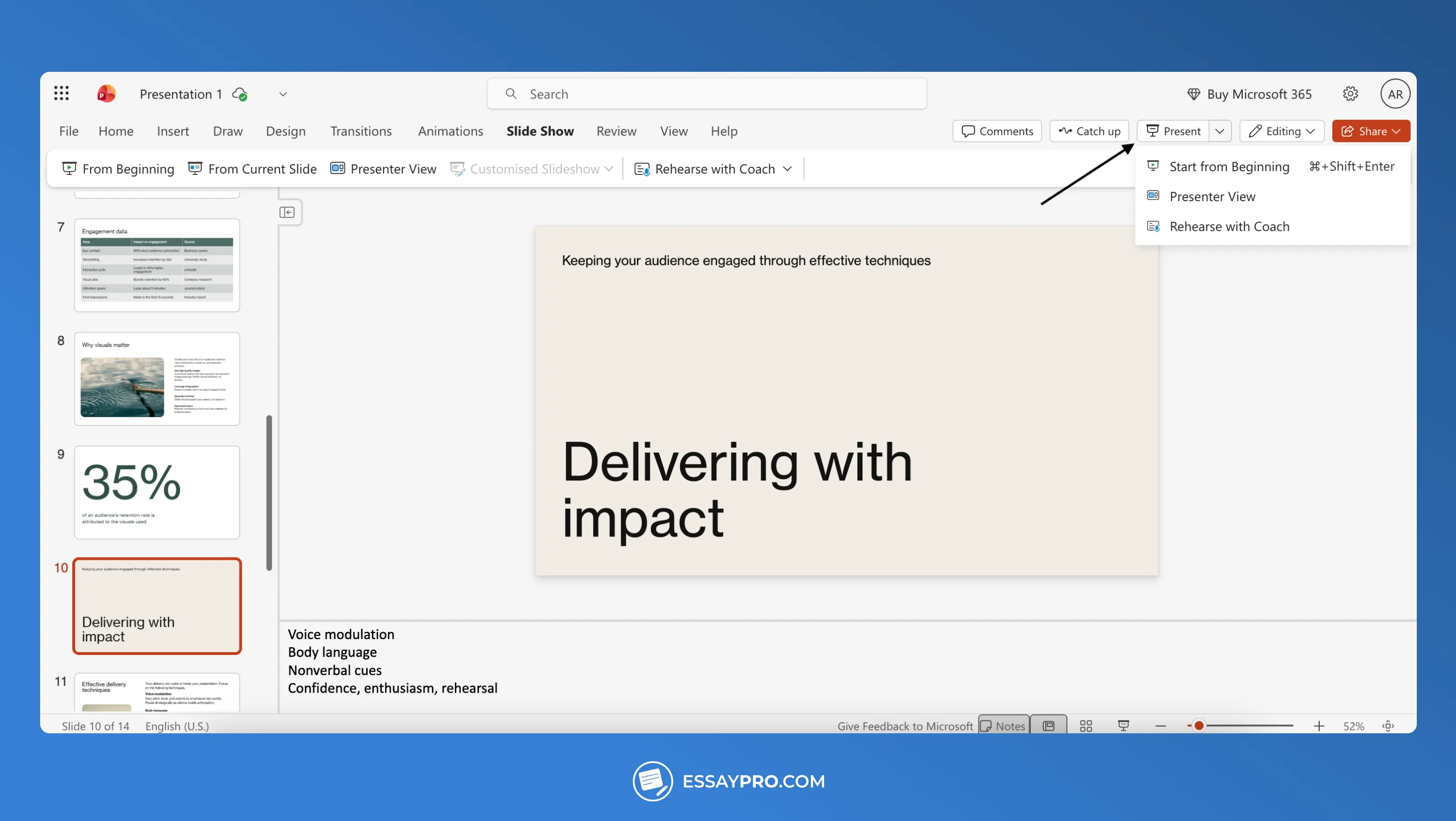
Step 4. If you’re sharing your screen in Microsoft Teams or Zoom, share only the Slideshow window, not your entire screen.

To delete notes before sharing the file:
Step 1. Open the presentation in PowerPoint Online.
Step 2. Click the Notes button to display the notes pane.
Step 3. Highlight and delete all text in the notes section for each slide.
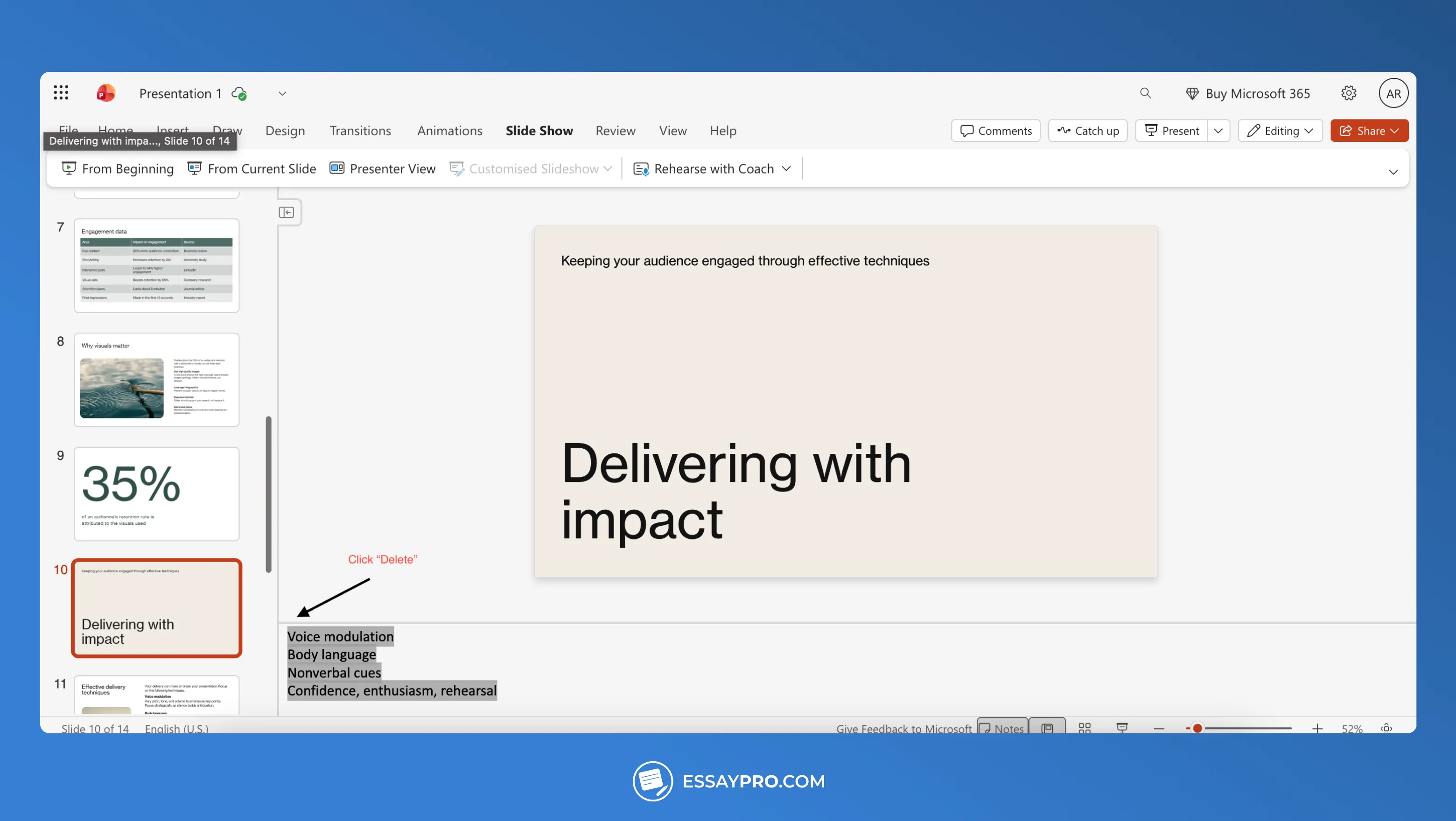
Step 4. PowerPoint Online saves automatically, so the notes are permanently removed once cleared.
Why Should I Use Speaker Notes?
Speaker notes keep you confident when the pressure of public speaking is high. Even complicated PowerPoint presentation topics become easier when you know what to say during the next slide. Here's what happens when you add speaker notes when you're presenting:
- Your flow doesn't break mid-sentence.
- They remind you of the main idea of each slide.
- You can engage with the audience instead of reading off the screen.
- They let you prepare backup points you can glance at.
The Bottom Line
Speaker notes help you stay in control of your presentation.They keep your slides uncluttered and your ideas sharp so your delivery sounds natural instead of rehearsed. Each note keeps your thoughts lined up and your focus in place. By glancing down when needed, you stay connected with the audience and keep your timing under control.
When planning everything alone starts to feel heavy, EssayPro can help. The team on the platform helps students refine slides, improve flow, and shape ideas into clear, confident presentations that feel ready for the real thing.
Consistent Quality, Human Logic
Let a professional from EssayPro give you reliable help with your papers
FAQs
Where Are Speaker Notes In PowerPoint?
How Long Should Speaker Notes Be In A PowerPoint Presentation?
How To Use Speaker Notes In PowerPoint?
How To Insert Speaker Notes In PowerPoint?
How To Save A PowerPoint With Speaker Notes?

Annie Lambert
specializes in creating authoritative content on marketing, business, and finance, with a versatile ability to handle any essay type and dissertations. With a Master’s degree in Business Administration and a passion for social issues, her writing not only educates but also inspires action. On EssayPro blog, Annie delivers detailed guides and thought-provoking discussions on pressing economic and social topics. When not writing, she’s a guest speaker at various business seminars.